Quick Search
Press ⌘K (Ctrl-K) to jump to a page, find a customer, vendor, invoice or account, or start a new record.
Press ⌘K (Mac) or Ctrl-K, or click Quick search… in the sidebar, to find a page or record or start a new one.
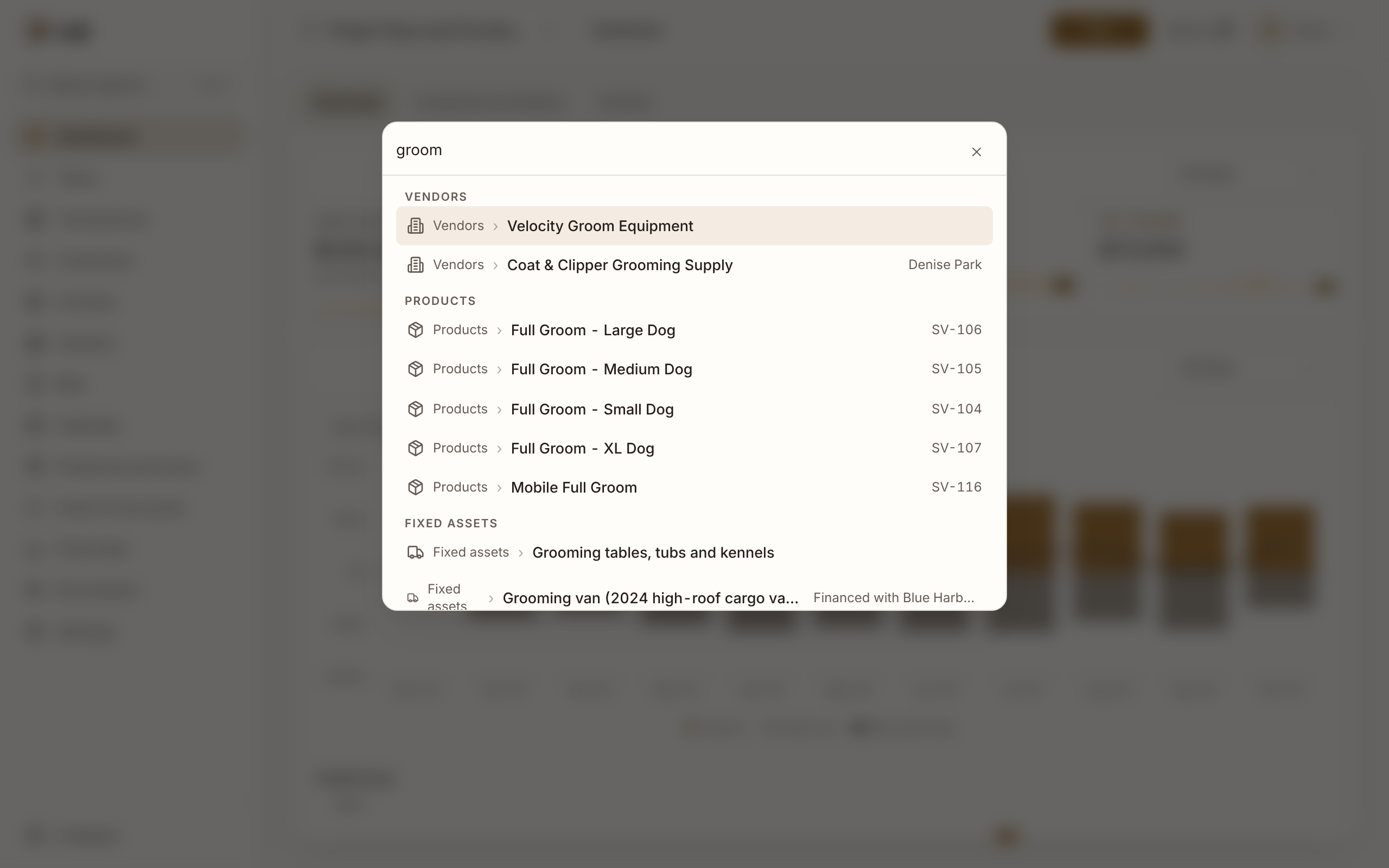
Using quick search
- Type at least two characters
Matches appear by type (Customers, Vendors, Invoices, Bills, Products, Fixed assets, Accounts), up to five of each, followed by matching pages.
- Pick a result
Use the arrow keys and Enter, or click.
- Search transactions
The last row, Search transactions for “…”, opens Transactions filtered to what you typed.
What it matches
Customers by name; vendors by vendor or contact name; accounts by code or name. Invoices by number or customer name; bills by number or the vendor's invoice number. Products by name or SKU; fixed assets by name or description.
Pages match their name and common alternatives, so “p&l” finds the income statement, “coa” the chart of accounts and “1099” the 1099-NEC report.
Archived customers, vendors and accounts and inactive products are left out. Disposed fixed assets are still found, since you may need them for a prior-year return.
Create shortcuts
With nothing typed, Create offers New journal entry, Import transactions (CSV), New invoice, New product / service, Add customer, Add vendor, Add fixed asset and Log mileage. Most open in place.
Good to know
- Search covers the business you're in. Switch business to search another.