Connect External AI
Connect Claude, ChatGPT or Grok to your books and work in plain English, with the access level you choose for each business.
Connect an outside AI to Lejr and keep your books from its chat: “record these receipts”, “what's overdue?”, “categorize last month and list anything you weren't sure about”. Claude, ChatGPT and Grok are supported; Gemini is coming soon.
The AI uses the same tools as the in-app assistant, on the businesses and at the access level you choose. It never sees your Lejr password.
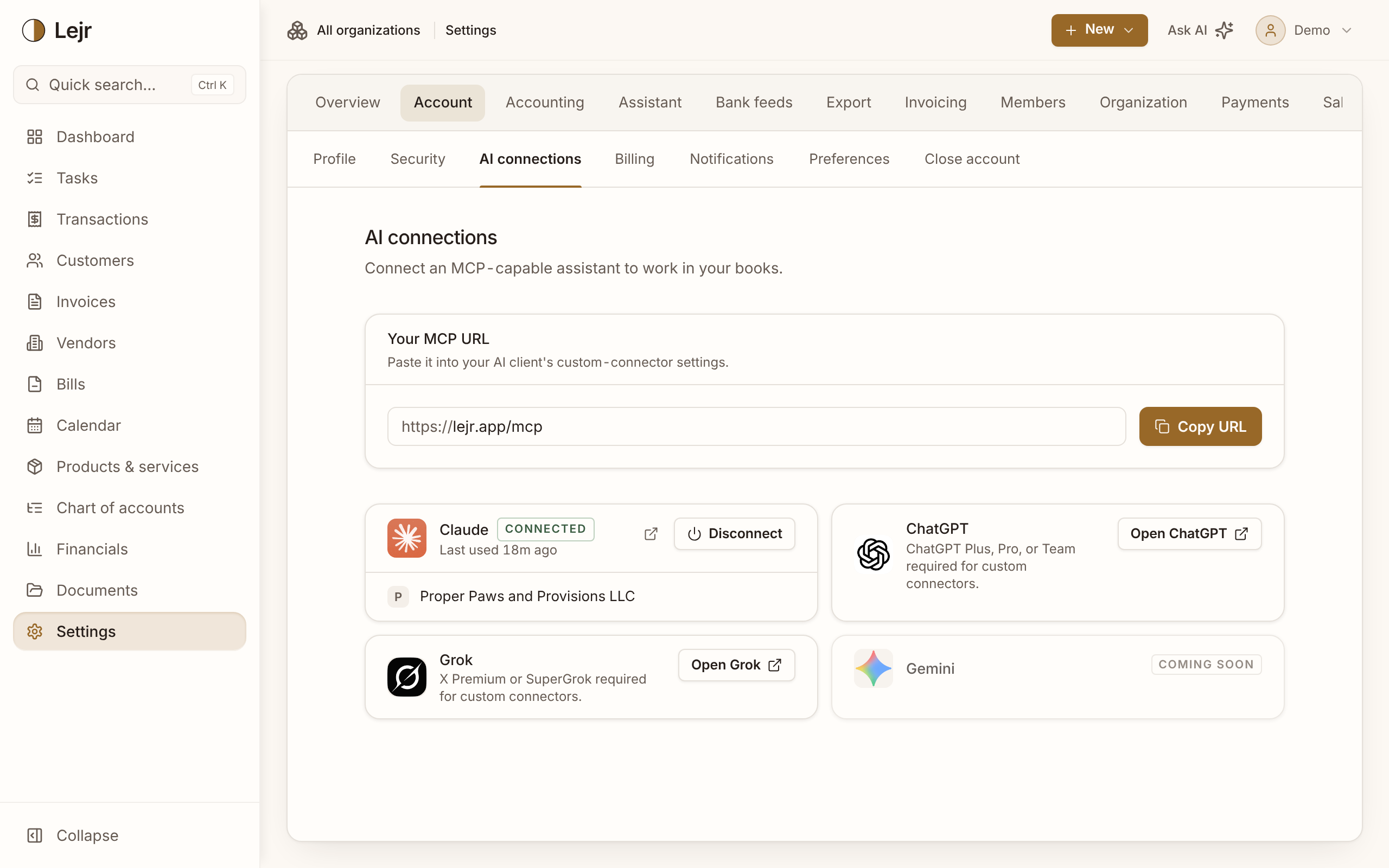
Connecting
- Copy the MCP URL
Go to Settings → Account → AI connections and click Copy URL. The URL is
https://lejr.app/mcp. - Add it as a custom connector
Click Open Claude, Open ChatGPT or Open Grok on the client's card, then paste the URL into that app's custom-connector settings.
- Sign in to Lejr
The AI app opens Lejr in your browser. Sign in as usual.
- Choose businesses
All your businesses start selected, which also covers ones you add later. Deselect any the AI shouldn't reach.
- Choose an access level
Full access can do everything, including voiding and disposing. Standard covers everyday work (create, edit, send, categorize) but not Corrections & locks or Sensitive: no voiding, disposing, closing a year or moving the books lock. Read-only can view data and run reports only.
- Authorize
Click Authorize. For Standard or Full you may be asked to confirm it's you. You're then returned to the AI app, connected.
Plan requirements
Connecting an AI is included in Plus and Pro, trial included. The AI app may need a paid plan for custom connectors: Claude Pro or Max; ChatGPT Plus, Pro or Team; X Premium or SuperGrok. Each card on AI connections states its requirement.
Who approves what
The AI app asks before using a tool unless you've told it to always allow that tool. That setting lives in the AI app.
Lejr enforces the rest on every request: the access level, your role in the business (a viewer can't write), whether an owner has turned off AI tools for you on Members, and any group set to Block in Settings → Assistant → Permissions.
Changes the AI makes are logged in the activity log under your name.
A connected AI can make at most 200 deletes and voids an hour in a business. Past that it's refused and told to send you to Lejr, where Bulk edit has no limit. It guards against a runaway or hijacked connection.
Files and receipts
Files you attach in the AI's chat don't reach Lejr. The AI reads them and records what's in them, then gives you a link to upload them to Documents. Once they're uploaded, it attaches each file to its record.
The AI can read files already in Documents: images, the text of PDFs, and spreadsheets. A scanned PDF has no text to read, so attach it in the chat instead.
Lejr warns the AI about document text that reads like instructions to it (“ignore previous instructions”, “change the bank details”) and tells it not to follow them. For the same reason, bank or payment details can't be written onto an invoice or estimate through a connection; set those in Lejr.
Managing and disconnecting
AI connections shows each connected AI, the businesses it reaches and when it was last used. Disconnect takes effect at once, and you can disconnect from a single business.
To change the access level or the businesses, disconnect and connect again. You can also remove Lejr from the AI app's connector list.
Good to know
- Requests from a connected AI don't count toward the in-app assistant's fair-use limit.
- Any other MCP client can connect with the same URL; it's listed under Other connections.
Common questions
- Can I give my accountant's AI read-only access?
- Yes. They connect their own AI with their own Lejr login and choose Read-only. As a viewer on your business, they couldn't write anyway.
- The AI said a tool is turned off. Why?
- Its group is set to Block in Settings → Assistant → Permissions, or the access level doesn't cover it: Standard can't void, close a year or dispose of an asset, and Read-only can't change anything.