Assistant Permissions
Set Block, Ask or Allow for each group of assistant actions. By default every change waits for your approval, and voids and disposals always ask.
Assistant permissions set what the assistant may do on its own. Tools are grouped by area, and each group is set to Allow (runs without asking), Ask (shows an approval card first) or Block (turned off).
By default, viewing and reports are Allow and everything that changes your books is Ask. You can change any group, and set a single tool differently from its group.
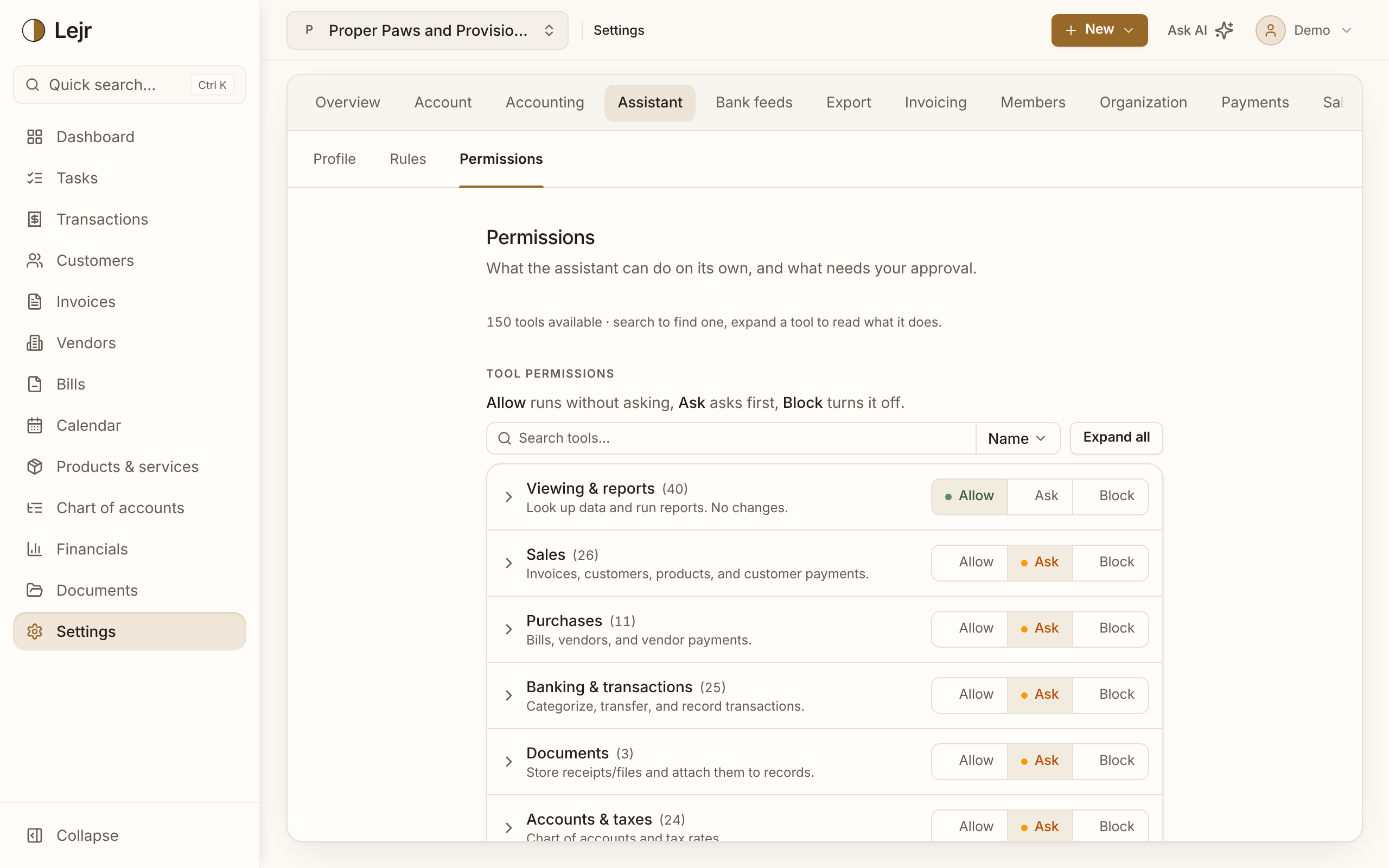
Setting permissions
- Open Permissions
Settings → Assistant → Permissions. Search for a tool, or expand one to read what it does.
- Set each group
Choose Allow, Ask or Block for Viewing & reports, Sales, Purchases, Banking & transactions, Documents, Accounts & taxes, Fixed assets & mileage, Corrections & locks, Sensitive (always asks) and Other.
- Override a single tool
Expand a group to give one tool its own setting, for example Allow categorizing but Ask before recording a payment.
- Limit what members can do
Owners and admins can use Limit what members can do to cap what any member's assistant may do in this business. It doesn't change your own settings.
Allow, Ask and Block
Ask is the default for every group that writes. The approval card shows the exact change, and nothing happens until you approve.
Allow runs the group's tools without a card. Changes still go in the activity log.
Block removes the tools. Block every group that writes and the assistant is read-only.
Corrections, and what always asks
Corrections & locks covers voiding invoices, bills and transactions, voiding an old outstanding reconciliation item, reopening a completed reconciliation, closing or reopening a year, and moving the books lock. Each one undoes in a step, so the group starts at Ask but can be set to Allow.
Sensitive (always asks) covers disposing of or voiding a fixed asset. These post several linked entries that take judgment to unwind, so they can be Ask or Block, never Allow.
Your settings and the business's limits
The strictest of your own setting, the member limit and the Sensitive cap applies. Owners and admins aren't held to the member limit. No setting grants more than your role: a viewer can't make changes.
Connected AI
Block also applies to any AI connected to the business. A blocked group can't be used through the connection, and the AI is told it's turned off in Assistant permissions.
Ask and Allow apply only to the in-app assistant. A connected AI asks for approval in its own app (see Connect External AI).
Good to know
- Tools that only work on a reconciliation draft are Allow by default, so a reconciliation needs one approval, when it's completed.
- Standing instructions such as “fuel goes to Vehicle Expenses” belong in Settings → Assistant → Rules.
Common questions
- Is approval required for everything?
- Only by default. You can set any group except Sensitive to Allow, Corrections & locks included.
- Why can't I choose Allow for a group?
- Either it's the Sensitive group, which is capped at Ask, or an owner or admin has limited what members can do in this business.